Factories > Environments
Configuring cloud agent environments
Create, configure, and manage cloud agent environments with the Oz web app, guided setup in Warp, or the Oz CLI.
Factories manage their workspace by default. Configure repositories in the factory definition and compute in runners; creating a standalone environment is not a prerequisite.
Create an environment when a standalone cloud workflow needs repositories, a toolchain, and setup commands, or when factory agents need an existing environment as an override. Use the Oz CLI, guided setup in Warp, or the legacy Oz web app. To select an existing environment for factory agents, set agentDefaults.environmentId.
Prerequisites
Section titled “Prerequisites”- GitHub repositories - Add one or more repositories for the agent to clone and work in.
- GitHub authorization - Give the run’s repository identity access to the repositories. For factory runs, check the GitHub connection and credential strategy. Standalone automation using an agent API key follows team GitHub authorization.
- Docker image - Use a publicly accessible image that can build and run your code. Official node, python, and rust images work for many projects. You can also use Warp’s prebuilt dev images.
Use a glibc-based image such as Debian, Ubuntu, or a default non-Alpine image from Docker Hub. If the runtime fails to start with a musl-based image such as Alpine, switch to a glibc-based image before retrying.
Create an environment in the legacy web app
Section titled “Create an environment in the legacy web app”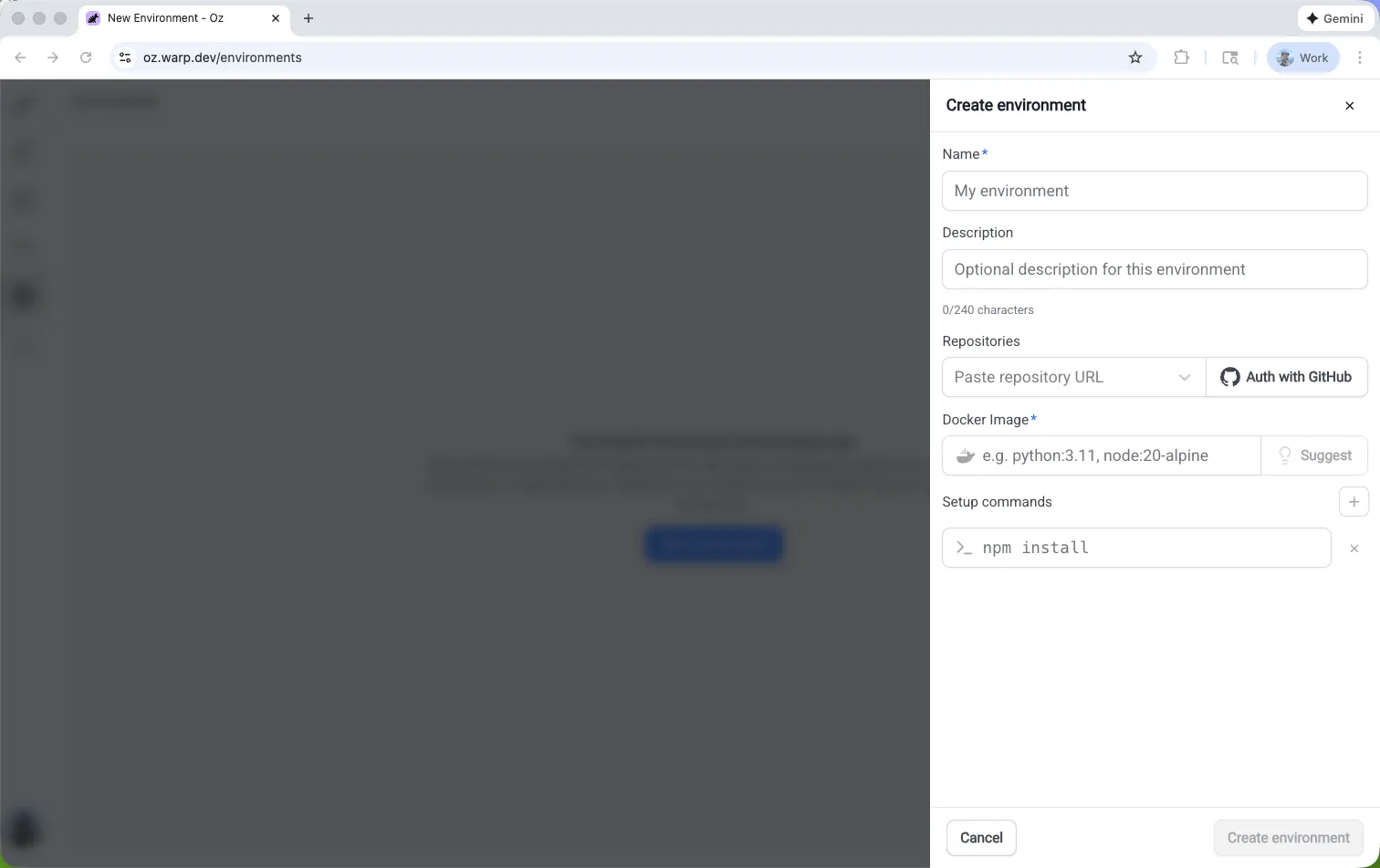
- Open the Environments page in the Oz web app, then click New environment.
- Enter a name, select one or more repositories, and enter a Docker image reference. Click Suggest to get an image recommendation based on the selected repositories.
- Add setup commands, cloud provider access for AWS or GCP, or a description when needed.
- Click Create environment. You can now use the environment with cloud agents and integrations.
Create an environment with guided setup
Section titled “Create an environment with guided setup”Run /create-environment in Warp to inspect your repositories and generate an environment configuration. The guided setup detects languages, frameworks, and tools, then recommends an image and setup commands.
Run the command from a Git repository with no argument, or pass one or more repository paths or URLs.
# Local paths/create-environment ./payments-service ./deployment-config
# GitHub repositories/create-environment acme/payments-service acme/deployment-config
# GitHub URL/create-environment https://github.com/acme/payments-service.git
Guided setup does the following:
- Detect repositories - Identifies the languages, frameworks, and tools the agent will use.
- Recommend an image - Finds an existing Dockerfile, recommends an official base image, or helps you build a custom image.
- Suggest setup commands - Uses your scripts and package managers to recommend workspace setup.
- Create the environment - Creates the environment through the CLI and returns an environment ID.
Create an environment with the CLI
Section titled “Create an environment with the CLI”Use the Oz CLI when you know the environment configuration, need a custom Docker image, or want to automate environment creation.
oz environment create \ --name ENVIRONMENT_NAME \ --docker-image IMAGE_REFERENCE \ --repo OWNER/REPO \ --setup-command "SETUP_COMMAND" \ --description "DESCRIPTION"Replace ENVIRONMENT_NAME with a human-readable label, IMAGE_REFERENCE with a Docker Hub image, OWNER/REPO with a repository to clone, SETUP_COMMAND with a workspace command, and DESCRIPTION with an optional summary. Repeat --repo and --setup-command for each additional repository or command.
Environment design and best practices
Section titled “Environment design and best practices”Design the image and setup commands so they produce the same workspace on every run.
- Keep setup repeatable - Write setup commands that are safe to rerun and produce the same toolchain and workspace state for a given repository revision.
- Pin toolchain versions - Pin language runtimes and core tools in a Docker image, then use lockfiles such as
package-lock.jsonfor dependencies. - Define the workspace boundary - In a multi-repo environment, state which repositories are cloned and where setup commands run.
- Make prerequisites explicit - Add any required build, code generation, or system-package installation steps to the setup commands.
# Repeatable setupmkdir -p .cachenpm ci
# Setup that can fail on rerun or drift over timemkdir .cachenpm install
If factory setup commands need credentials, configure factory secrets. For standalone workflows, use Agent Secrets. Don’t hardcode tokens in setup commands.
Configure container users
Section titled “Configure container users”Linux container runs use a non-root user by default. Configure your image and setup commands for the selected user.
Understand how Warp chooses the container user
Section titled “Understand how Warp chooses the container user”- Image with a non-root
USER- Warp respects the DockerfileUSERdirective and runs the agent as that user. - Image that starts as root - Warp runs the agent as a dedicated
agentuser with passwordlesssudo. The user has UID and GID 1000 when available. - Image that cannot support a non-root user - If Warp can’t install
sudoor the workspace isn’t writable by the agent user, it logs a warning and continues as root.
Prepare images and setup commands
Section titled “Prepare images and setup commands”- Use
sudofor root access - Prefix commands such asapt-get install, writes to/usr/localor/etc, andchownwithsudo. The dedicatedagentuser’s passwordlesssudopreservesPATH, with sudo’s environment filtering. If your image supplies its own non-root user, configure the privileges that user needs in the image. - Install tools outside
/root- A newly createdagentuser normally has its home in/home/agent; an existing user keeps its configured home. Install tools and configuration stored in~/.bashrc,~/.cargo, or~/.nvmsystem-wide or somewhere the selected user can access. - Keep directories writable - Make workspace directories writable by the selected user’s UID and GID. The dedicated
agentuser uses UID and GID 1000 when available; an image’s existing non-root user can have different IDs.
Manage environments
Section titled “Manage environments”Use the Oz CLI to inspect and update environments after you create them.
List environments
Section titled “List environments”oz environment listView an environment
Section titled “View an environment”Replace <ENV_ID> with the ID of the environment you want to view.
oz environment get <ENV_ID>Update an environment
Section titled “Update an environment”Replace <ENV_ID> with the ID of the environment you want to modify.
# Add or remove a repositoryoz environment update <ENV_ID> --repo OWNER/REPOoz environment update <ENV_ID> --remove-repo OWNER/REPO
# Add or remove a setup commandoz environment update <ENV_ID> --setup-command "SETUP_COMMAND"oz environment update <ENV_ID> --remove-setup-command "SETUP_COMMAND"
# Update the name, description, or Docker imageoz environment update <ENV_ID> --name "ENVIRONMENT_NAME"oz environment update <ENV_ID> --description "DESCRIPTION"oz environment update <ENV_ID> --docker-image IMAGE_REFERENCE
# Set or replace the default runneroz environment update <ENV_ID> --default-runner RUNNER_UID
A runner is a reusable compute configuration for cloud agent runs. Run oz runner list to see the runners available to you and their UIDs. For a team environment, the runner must be owned by that same team.
Use --remove-description to clear the description. Use --force to skip confirmation checks for environments used by integrations.
Delete an environment
Section titled “Delete an environment”Replace <ENV_ID> with the ID of the environment you want to delete.
oz environment delete <ENV_ID>Add --force to skip confirmation checks for environments used by integrations.
Related pages
Section titled “Related pages”- Environments for factory agents - Understand factory defaults and shared environment overrides
- Troubleshooting cloud agent environments - Resolve setup and runtime problems
- Integration setup - Configure end-to-end integration workflows